


How it works
TextSetu uses an asymmetric model, the same one used by most localization platforms:- Your repository owns the source. The source-language files in your repo are the single source of truth for what needs translating. Pull imports those keys into TextSetu.
- TextSetu owns the translations. Translators work in TextSetu. Push writes the translated languages back to your repo as a pull request — your source files are never overwritten.
Why not two-way on everything? If both sides could overwrite the same file, a translator’s edit and a developer’s edit would collide. Keeping source in the repo and translations in TextSetu makes every sync a clean, one-directional move.
Prerequisites
- A GitHub repository you can install a GitHub App on (org owner/admin on GitHub).
- The Manage organization permission in TextSetu (to install the GitHub App at the org level) and Manage project (to connect a project).
- Your translation files in a supported format —
JSON, XLIFF, Android XML, Apple
.strings, Gettext.po, YAML, and 30+ more.
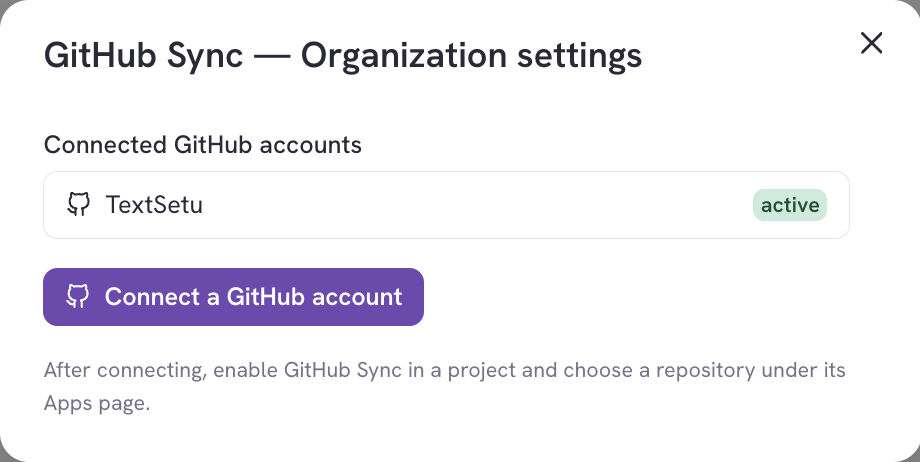
Connecting a repository
New projects start with a short setup wizard that walks you through connecting and configuring in four steps, teaching what Pull and Push do as you go.Step 1 — Connect the GitHub App
Install the TextSetu GitHub App on the repository, then choose the installation, repository, and base branch to sync with.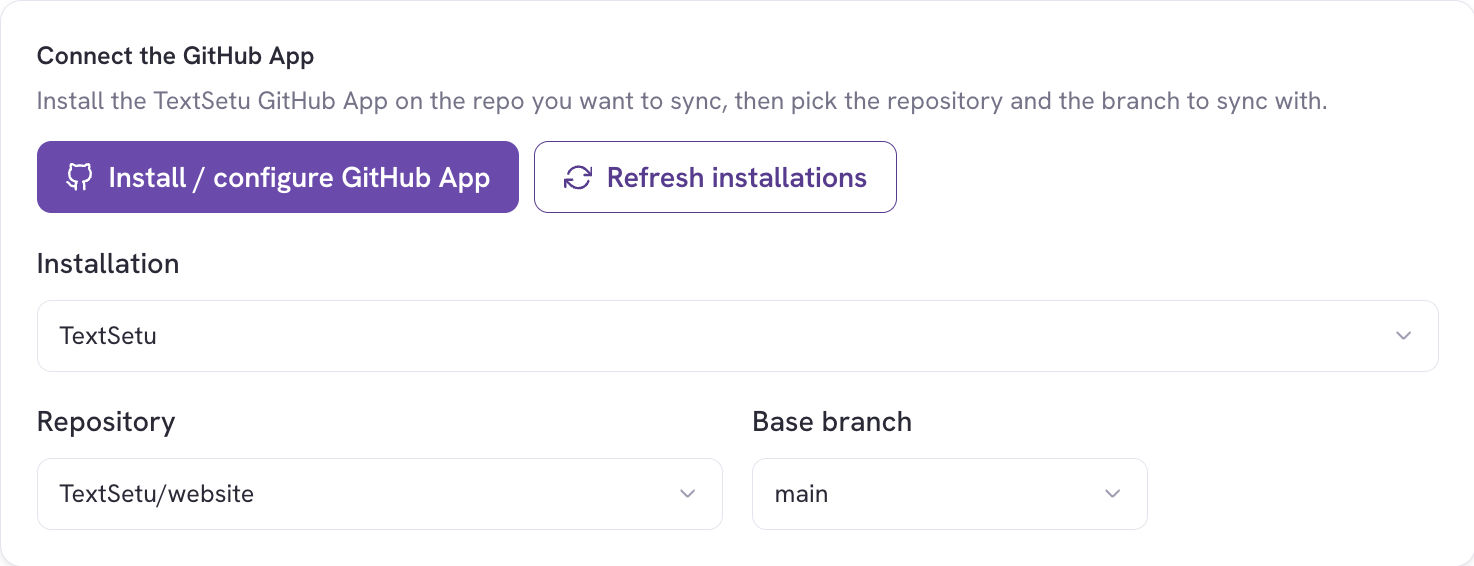
- Click Install / configure GitHub App — this opens GitHub in a new tab. Grant the app access to the repositories you want to sync, then come back and click Refresh installations.
- Pick the installation (your GitHub org/account).
- Pick the repository.
- Pick the base branch (usually
main) — this is the branch Pull reads from and Push targets.
Step 2 — Configure sync rules
A sync rule connects files in your repo to TextSetu. Each rule has two clearly labelled halves and a file format: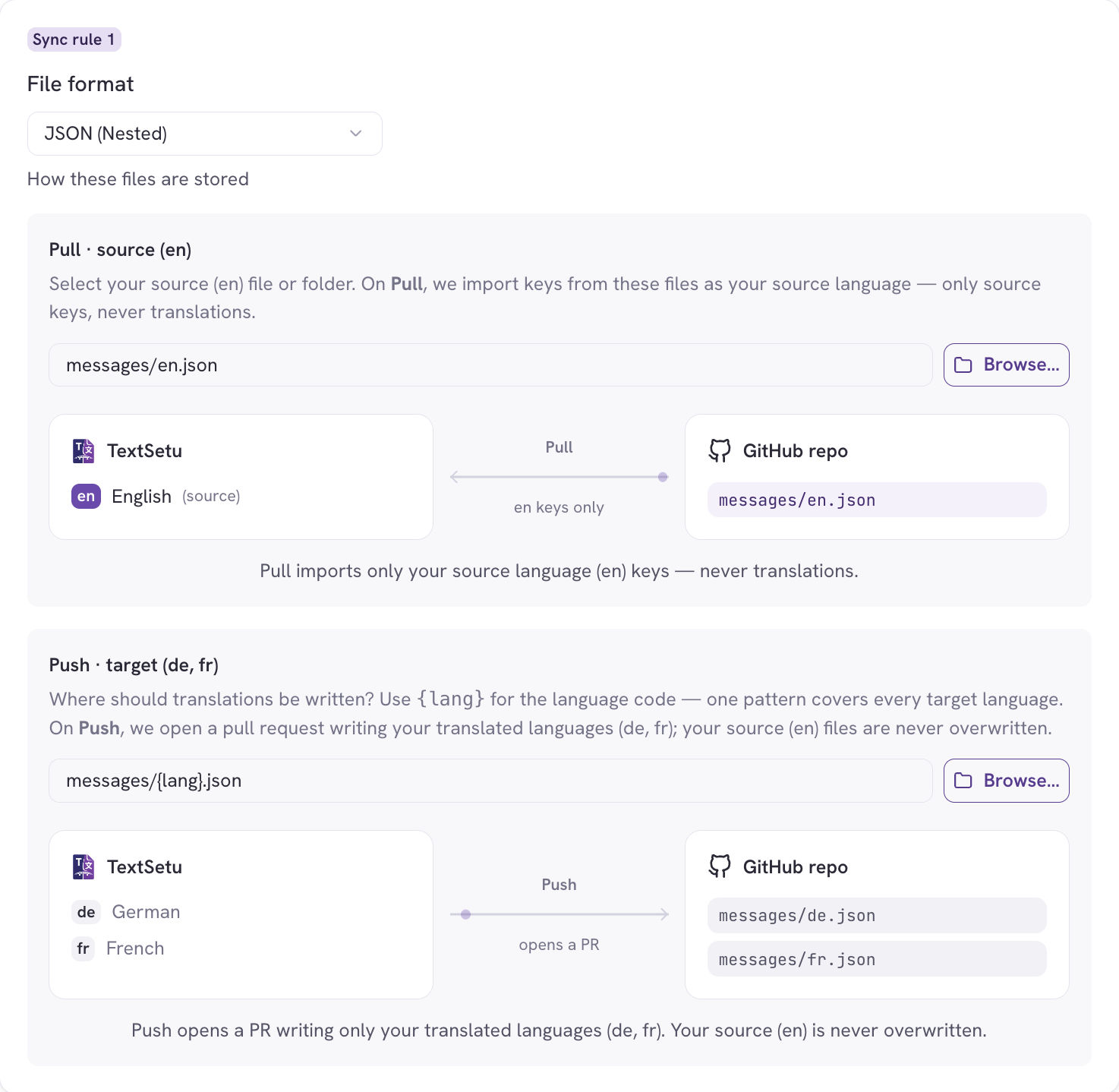
- File format — how these files are stored (e.g. JSON (Nested), Android XML).
- Pull · source
(en)— select your source file or folder. Use Browse… to pick it from the repo tree; TextSetu derives the pattern for you. On Pull, keys are imported from these files as your source language — only source keys, never translations. - Push · target
(fr, de, …)— where translations are written. Use the{lang}token for the language code; one pattern covers every target language. On Push, TextSetu opens a pull request writing your translated languages; your source files are never touched.
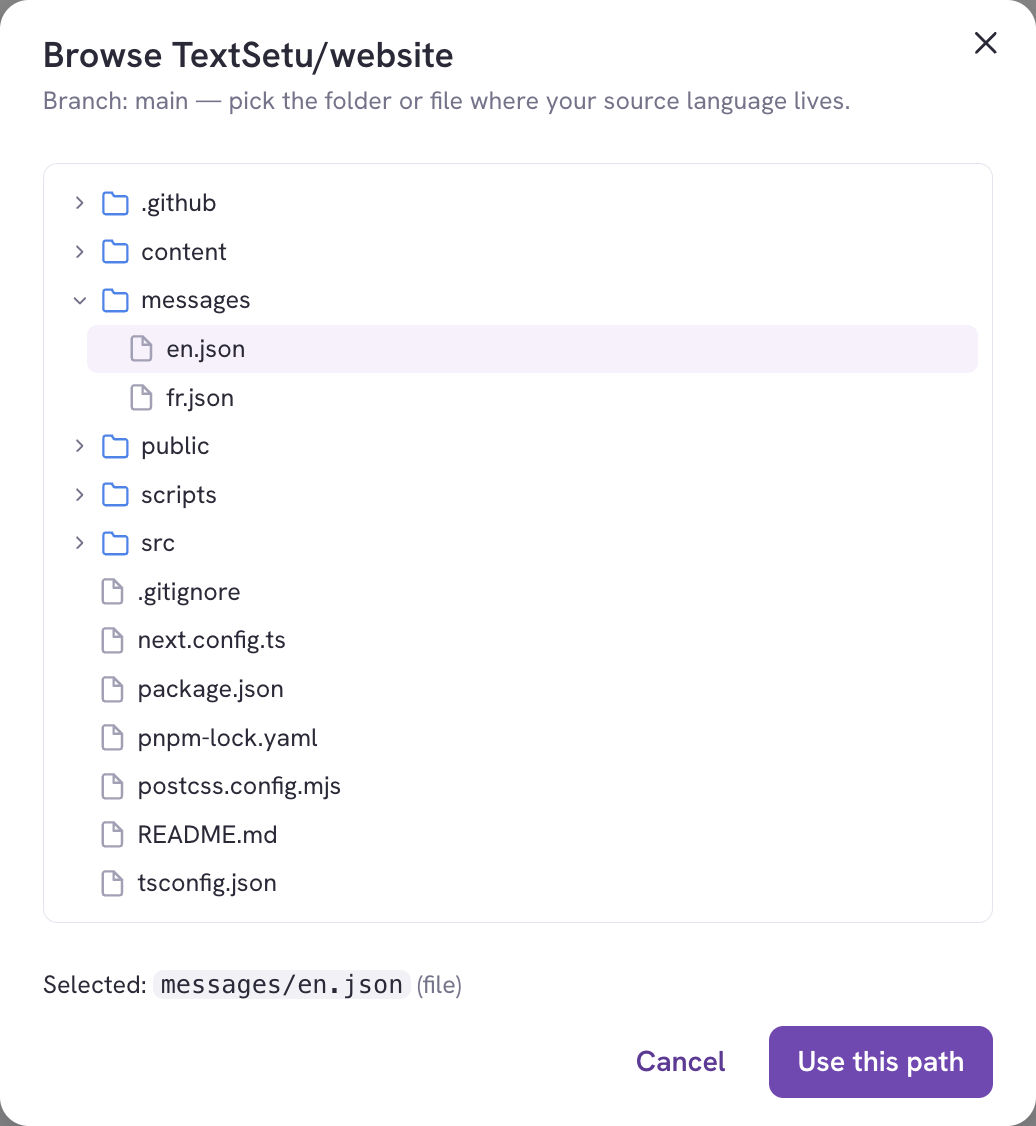 Add another rule if your strings live in several places or formats. If a picked
file’s extension doesn’t match the selected format, TextSetu shows a warning so you
can fix the file or the format.
Add another rule if your strings live in several places or formats. If a picked
file’s extension doesn’t match the selected format, TextSetu shows a warning so you
can fix the file or the format.
Patterns and tokens. The source pattern is a glob (e.g.
locales/en/*.json).
The translation pattern uses tokens that expand per language. See
Sync rules & file patterns below for the full list.Step 3 — Import existing translations (recommended)
If your repo already contains translations (not just source), turn on the one-time import existing translations option. This seeds your project with everything already in the repo — your source and any
fr, de, … files it finds — and auto-adds the discovered languages to the
project. It runs once; after that, TextSetu owns the translations and ordinary
Pulls import only source strings.
Step 4 — Finish
Review the summary and choose whether pushes to your branch should trigger a Pull automatically, then click Connect repository.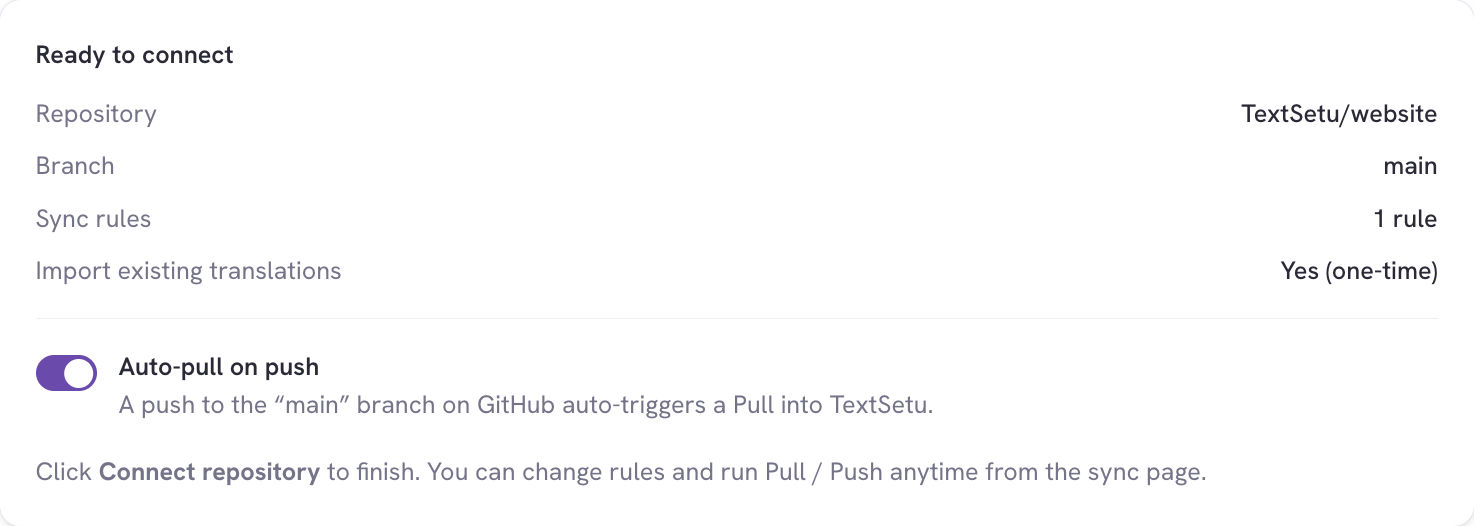
- Auto-pull on push — when on, a push to your base branch on GitHub automatically triggers a Pull into TextSetu (see Automatic sync).
Sync rules & file patterns
A rule’s source pattern is a glob that selects the source-language files to read on Pull. The translation pattern is a template that, per target language, resolves to the file Push writes. Available tokens in the translation pattern:
Examples
Running a sync
From the connected project’s Sync page you can run each action on demand:
- Pull source — import the latest source-language keys from the repo.
- Push translations — open a pull request writing your translated languages back.
- Import existing — the one-time seed from Step 3; disabled once a managed sync branch exists.
Confirm before you sync
Before an action runs, TextSetu reads your repository and shows a confirmation with the same flow diagram and the exact list of files the action will read or write — so there are no surprises.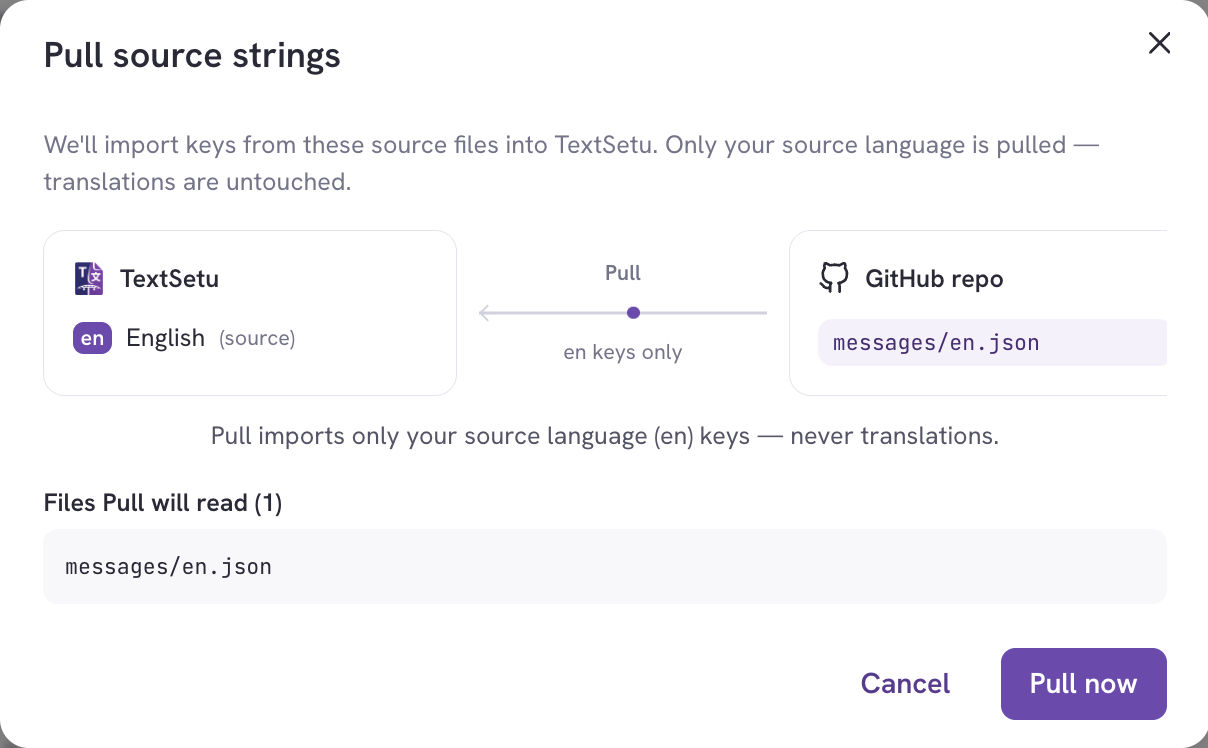 Push shows the same confirmation in the other direction — the languages and the files the pull request will write:
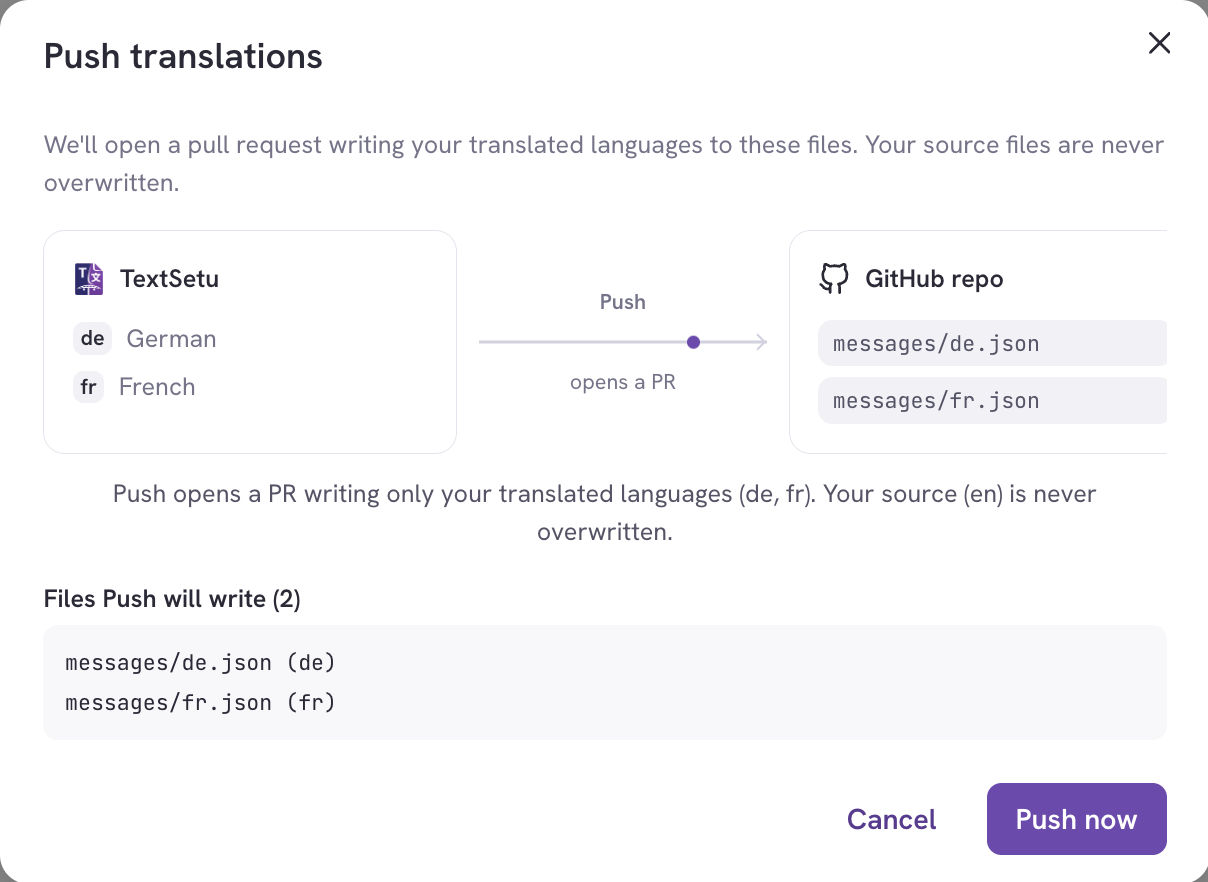 Review the files, then click Pull now / Push now / Import now.
Large repositories. If GitHub returns a partial file list for a very large repo,
the confirmation notes that the preview may be incomplete — the sync itself still
processes everything.
Automatic sync (webhooks)
With Auto-pull on push enabled, every push to your base branch triggers a Pull, so TextSetu always reflects the latest source strings. These automatic pulls are source-only and additive — they never delete keys or touch translations. Protected branches. If your base branch is protected, TextSetu can’t commit translations to it directly. Instead, Push routes into an auto-managed translation branch and opens a pull request from there. The branch is created on demand and cleared once its pull request is merged or deleted, so you review every change through GitHub’s normal PR flow.Connection settings
The management view exposes the ongoing sync behaviour:- Auto-pull on push — a push to the base branch auto-triggers a Pull into TextSetu.
- Delete keys missing from repo (cleanup) — when a Pull runs, keys no longer present in the repo are removed from TextSetu. Off by default; automatic (webhook) pulls never clean up regardless of this setting.
- Sync rules — edit the Pull source / Push target patterns and formats at any time.
- Disconnect — remove the connection (your translations stay in TextSetu).
Sync history
The Recent sync runs table logs every Pull and Push: Each run shows its direction (pull/push), trigger (manual, webhook, or
scheduled), status (queued → processing → completed/failed), a link to the commit
or pull request, a summary of changes (keys added, values updated, translations
imported), and any error message if it failed.
Each run shows its direction (pull/push), trigger (manual, webhook, or
scheduled), status (queued → processing → completed/failed), a link to the commit
or pull request, a summary of changes (keys added, values updated, translations
imported), and any error message if it failed.
Permissions
Troubleshooting
“Pull existing still fetches onlyen.”
A plain Pull is source-only by design. To bring in translations already in the repo,
use Import existing (Step 3) — it discovers repo languages and adds them to the
project.
A file’s format looks wrong.
If a rule’s file extension doesn’t match its selected format (e.g. a .mjs file on a
JSON rule), TextSetu shows a warning. Pick a matching file or change the format.
Push says “pull-only”.
The connection’s direction is set to pull-only. Change the sync direction to allow
pushes.
No target languages yet.
Push needs target languages to write. They’re added automatically by Import existing,
or you can add them from the project’s Languages tab.
A run failed.
Open the run in the history table to see the error. Common causes are a pattern that
matches no files, or a file TextSetu can’t parse in the chosen format — the run fails
cleanly and you can fix the rule and re-run.
Related
- App Store overview
- Supported file formats
- Branches
- Import & Export — the manual alternative to syncing